Creating and filling in a record
A record describes a single document: its data (metadata), the images or PDFs attached to it, and its transcription.
Creating a record
- Move to the folder where you want to put it.
- Use New record above the list (the arrow next to the button lets you pick the document type straight away), or
Ctrl+N, orCtrl+Kand type "new record". - Choose the document model: it determines which fields you will see.
Filling in the fields
The form shows only the fields provided for by the model you chose, without endless forms to scroll through, and the save commands stay visible at all times.
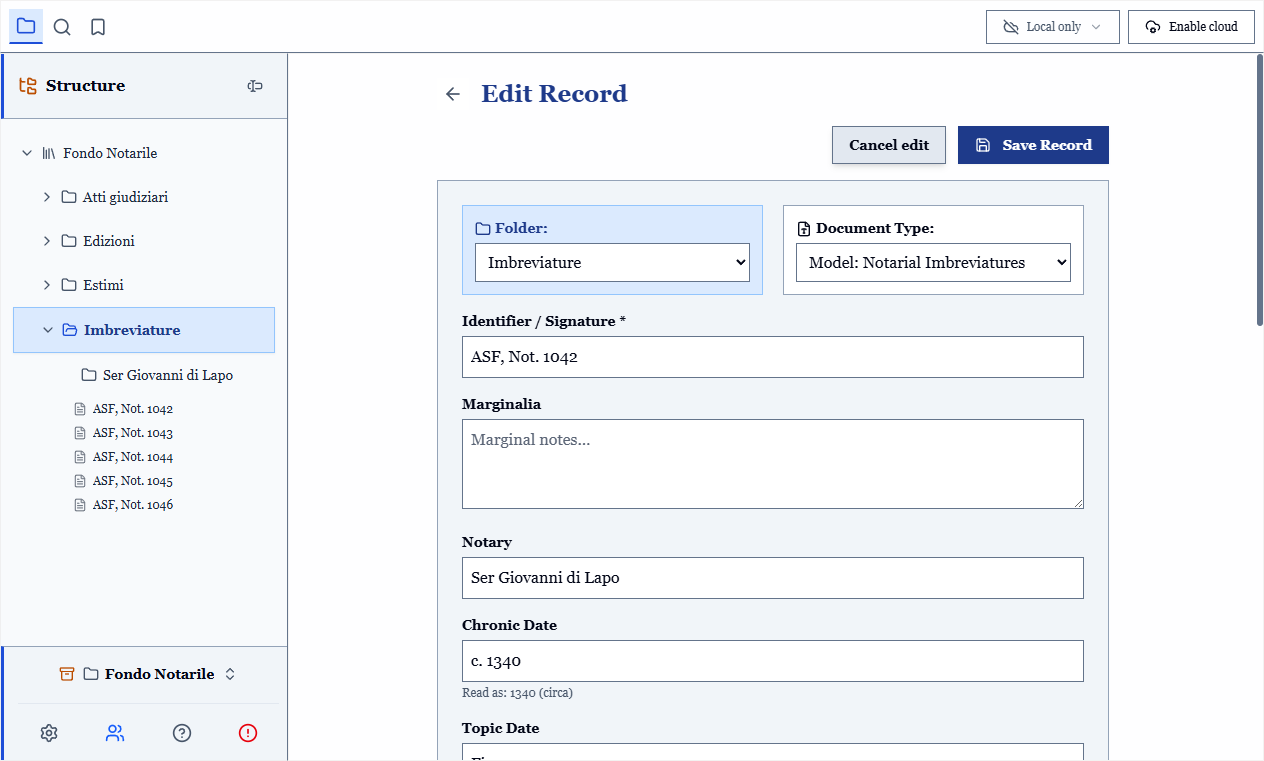
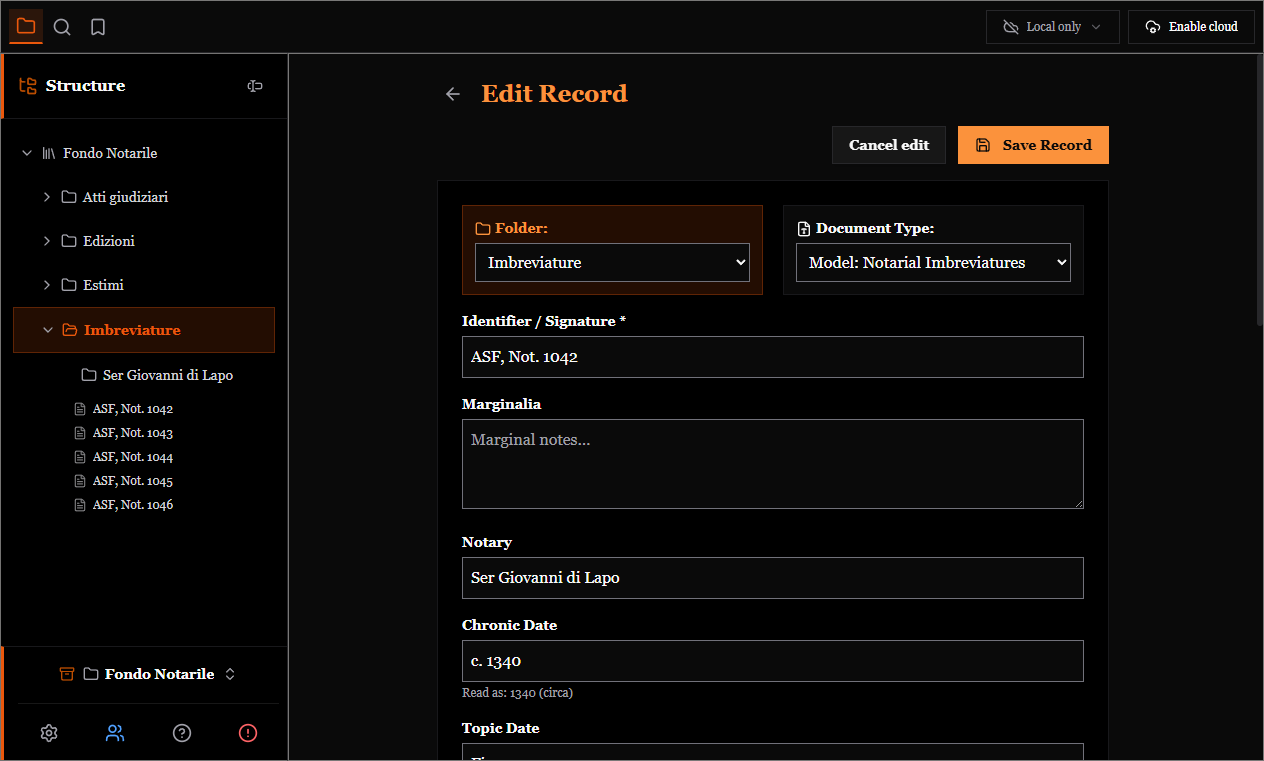
Under the date, the program states how it read it: "Read as: 1340 (circa)".
Not every field is a text box: depending on how the model is defined, a field can be a number, a yes/no switch, a controlled drop-down list, a web address, a historical date or a repeatable list. See Document models.
Practical advice:
- The shelfmark first of all. It is the datum you will use to find the document again, and the one the list is sorted by.
- Keep name forms consistent. "Rossi, Giovanni" and "Giovanni Rossi" are two distinct entries as far as the program is concerned. If you notice too late that you used two spellings, the authority list unifies them in a minute.
- Tags answer the questions you will ask later, they do not repeat the fields. See Tags.
Warnings and blocks
A field declared required prevents saving until it is filled in. A field declared unique does not block: if the value already exists in another record, the program tells you after saving and lets you decide. A real fonds contains repeated shelfmarks from inventories that predate your cataloguing; refusing them would force you to falsify the data.
A field the model does not provide for
You add it to the single record, without touching the model: see Record-specific fields. The same place lets you reorder the fields of the form.
Saving
Saving is explicit: the button, or Ctrl+S. The program warns you if you try to leave a record with unsaved changes.
The arrow at the top left takes you back to the list.
The other operations on a record
Right-click a record in the list (or the "⋯" on the card, which is the same menu):
| Entry | What it is for |
|---|---|
| Edit / Transcribe | Opening the metadata or the text |
| Duplicate | Nearly identical documents, such as acts from the same rogation |
| Move, Copy, Cut | Reorganising the archive |
| Linked | The links to other records |
| History | How it changed over time, see Trash and snapshots |
| Export, Print | CSV, text and citations, printing |
| Delete | Goes to the trash, it does not vanish |
To do this on many records at once, see Working on several records.