Attachments
You can attach reproductions of the document to every record: photographs, scans, PDFs.
Adding an attachment
From the record form, in the attachments section. Files are copied into the allegati_manoscritti folder of your working folder: if you later move or delete the original, the record keeps working.
A manuscript already digitised by a library can be added without downloading it: see Importing from IIIF.
Viewing
The built-in viewer opens images and PDFs without leaving the program. The commands also apply to the pages of a PDF, which are browsed one at a time (see Transcription):
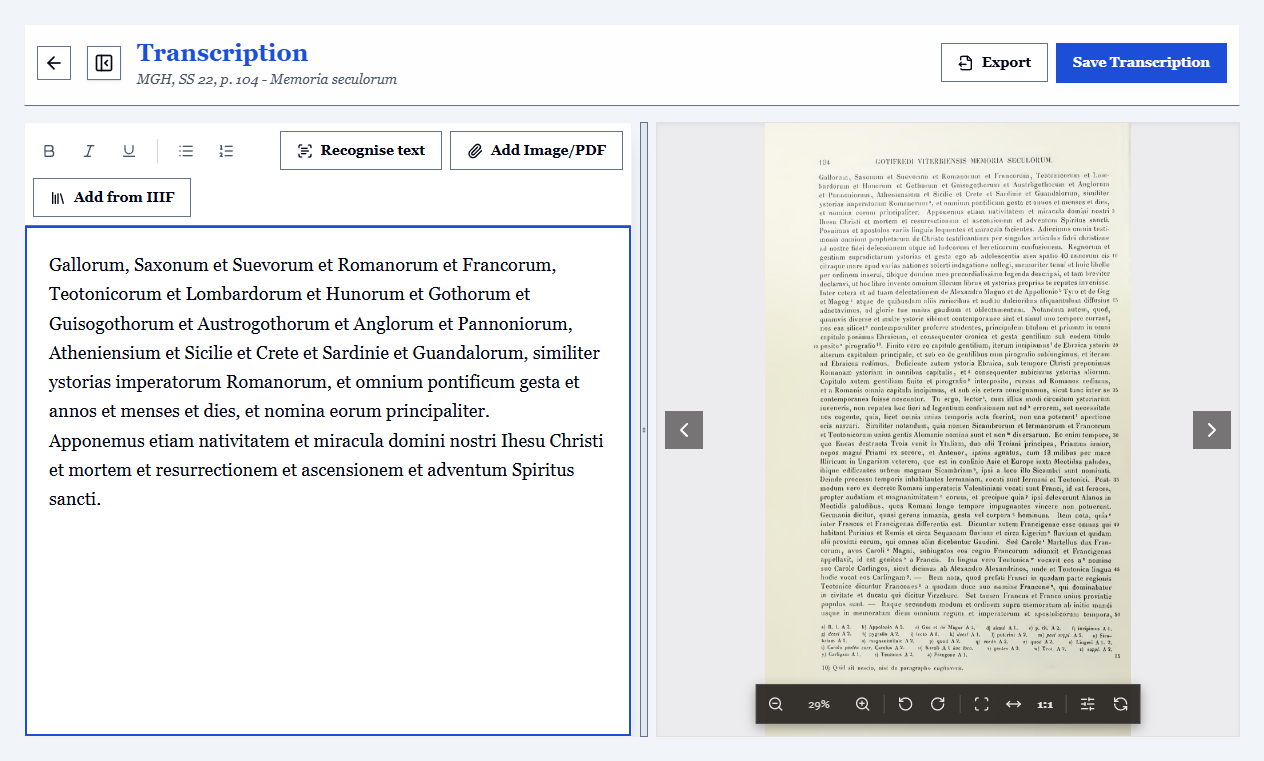
| Action | How |
|---|---|
| Zoom in / out | Mouse wheel, or the + and - keys |
| Move the image | Drag with the mouse |
| Rotate by 90 degrees | R key |
| Fit to page or width | Viewer buttons |
| Previous / next attachment | Alt + left/right arrows |
| Previous / next page (across attachments too) | Page Up / Page Down |
| Full screen | Alt+F |
| Fit to page / actual size | 0 / 1 |
There are also brightness and contrast controls and a negative mode: they are meant for faded or hard-to-read hands, and sometimes they bring out a stroke you cannot read with the naked eye.
Advice on files
- Ordered names:
c001r.jpg,c001v.jpg,c002r.jpg. Alphabetical order becomes folio order, and the navigation shortcut takes you through them in the right sequence. - One PDF or many images? A PDF is convenient for a document already digitised as a whole; single images are more flexible if you work folio by folio.
- Mind the disk space: high-resolution scans take up a lot. Attachments are copied, so the space used doubles compared with the originals.
Reordering folios
Thumbnails can be dragged into the right order (or moved with the arrow keys). The transcription follows the folio: reordering does not mix up the texts.
Letting the program read the text
On scans of later or printed documents, OCR can recognise the text and make it searchable without transcribing it by hand.