Trash, snapshots and history
Four overlapping safety nets, from the most immediate to the deepest.
1. Undo and redo
Ctrl+Z undoes the last action, Ctrl+Y (or Ctrl+Shift+Z) redoes it.
They also cover large operations: a CSV import of two hundred records, a text replacement across an entire selection, the merge of two tags are a single undoable action.
The shortcuts are not active while you are typing inside a text field: in that case Ctrl+Z undoes your typing, as you would expect.
2. Trash
Deleted records do not vanish: they go to the trash, where they stay for 30 days (the value can be changed in the settings). From there they can be restored or deleted permanently.
It opens from the "⋯" menu above the list, from Settings, Data and from the command palette (Ctrl+K, "trash" or "recover").
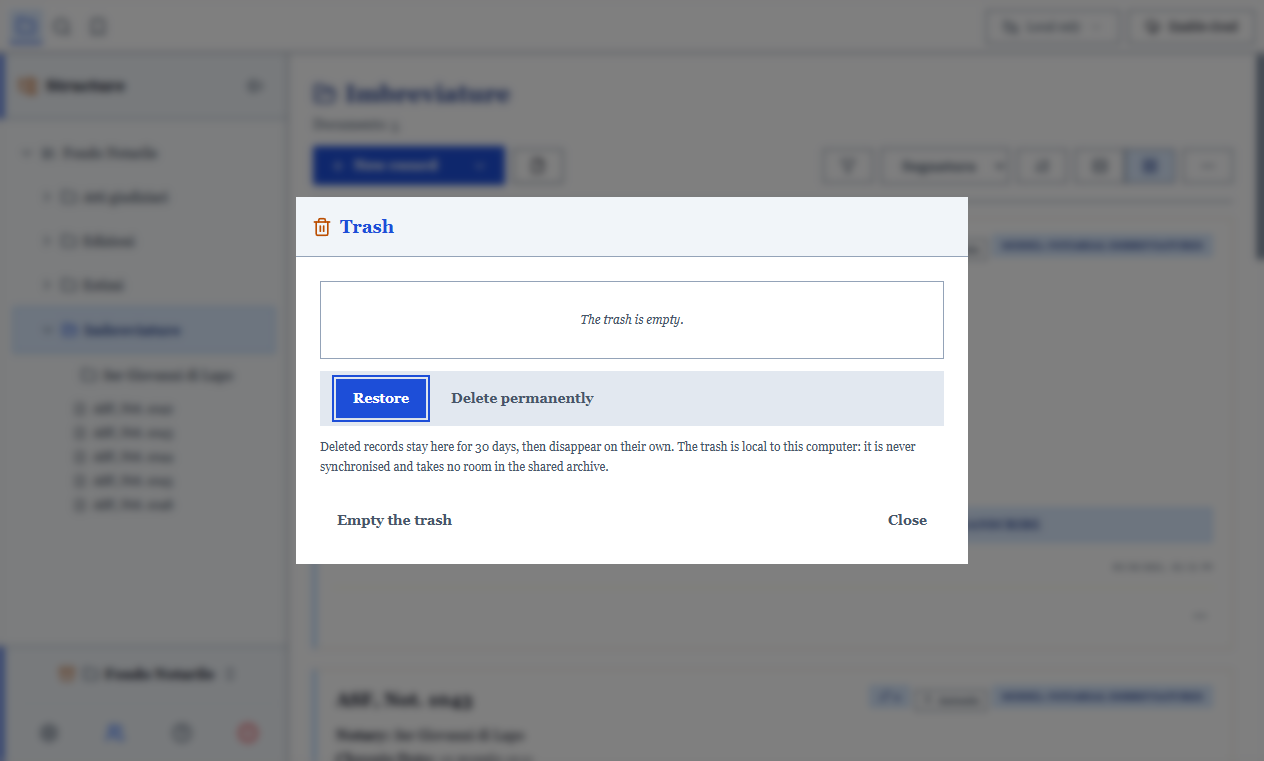
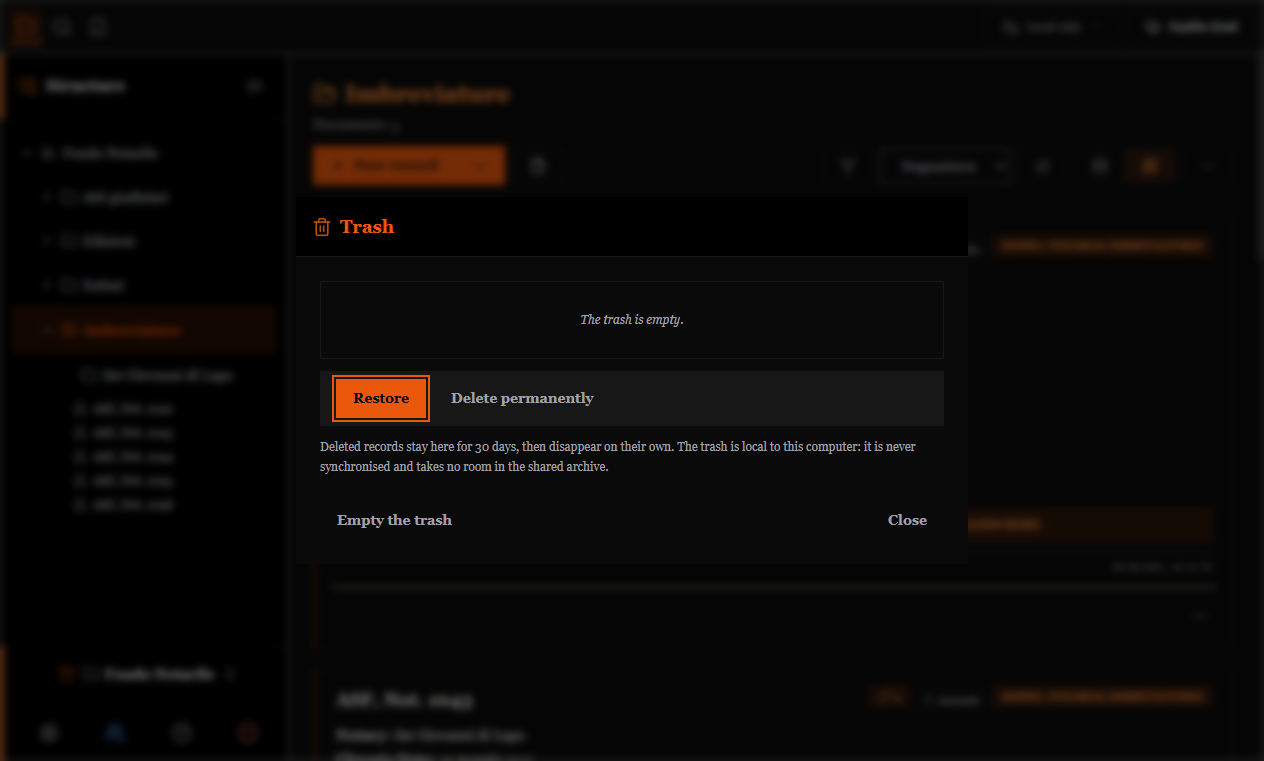
The trash is yours, not the archive's
It is not synchronised: in a shared archive nobody sees what you have deleted, and emptying it here does not bring records back from another machine. Deletion itself, on the other hand, propagates to everyone as always.
3. Local snapshots
A snapshot is a picture of the whole archive, taken automatically while you work (at most one every half hour) and stored compressed on your disk.
The program keeps the last 10 plus the most recent of each day for 30 days: the two criteria add up, so you have both the detail of the last few hours and the history of the month.
They are in the History panel of the sidebar, "Local snapshots" section. They are always there, even without any synchronisation active.
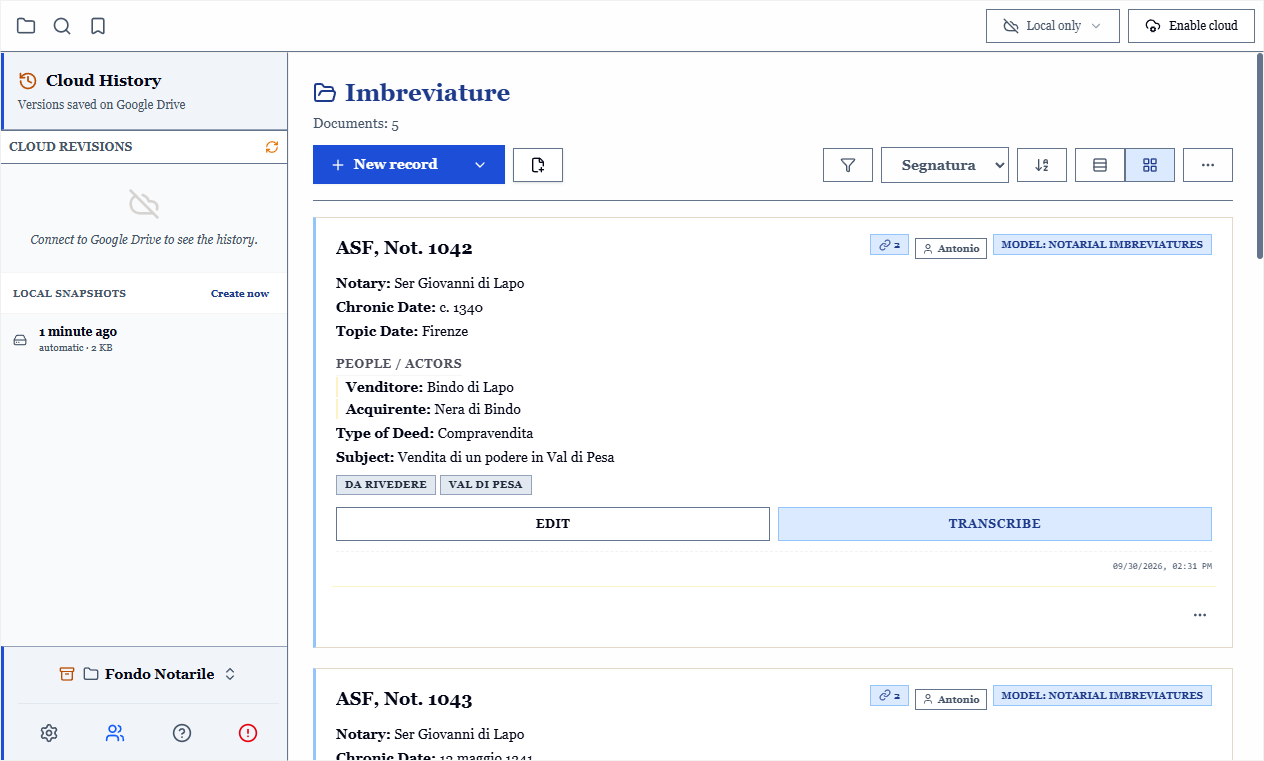
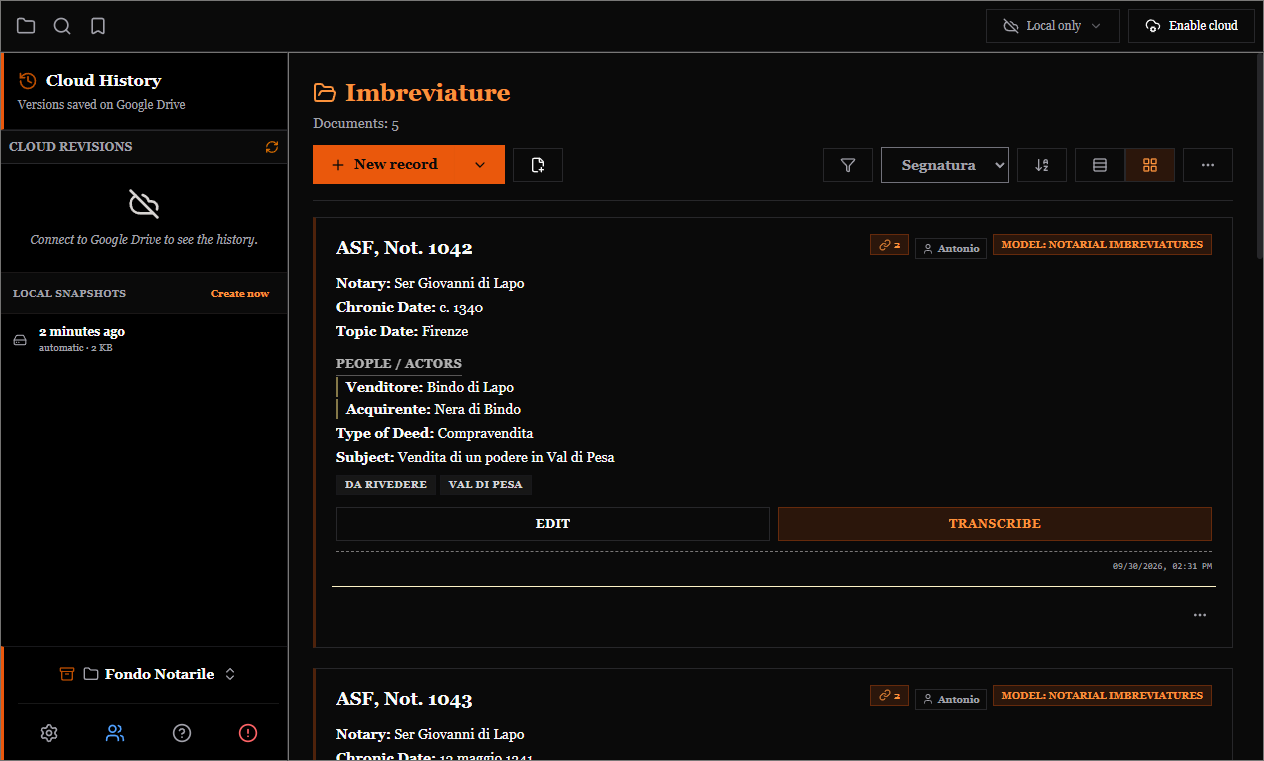
From there you can restore the archive to an earlier snapshot. Restoring is designed to survive synchronisation: records that go back are re-signed, and those created after the snapshot do not come back from the cloud.
WARNING
Restoring takes the whole archive back, not a single record. For a single record use the record history, below.
4. Record history
Right-click a record, View, History: it shows how that record changed over time, reconstructed from the snapshots, with the differences highlighted field by field.
It is the right tool for the most common question: "did I write this date differently before?".
The settings
Settings, Data, Trash and snapshots: here you set how many snapshots to keep, for how many days, and for how many days to keep the trash.
0 days for the trash means "keep nothing", not "forever".
What they do not cover
None of these nets protects against a broken disk or a deleted folder: trash and snapshots live inside the working folder. For that you need a copy elsewhere: see Backup, export and transfer.